Security Manager
Apply Windows security hardening features and run IEC-oriented security checks in Power Suite.
Platform Differences
| Feature | Windows | Ubuntu |
| Security utility | Security Manager. | Security Diagnosis. |
| ASR | Supported. | Not supported. |
| IEC 62443 | IEC Standard Configurator - IEC image only. | IEC Standard Configure. |
| Application allowlisting | WDAC / Application Control. | Not supported. |
| Drive encryption | BitLocker. | Not supported. |
Windows Security Manager
Overview
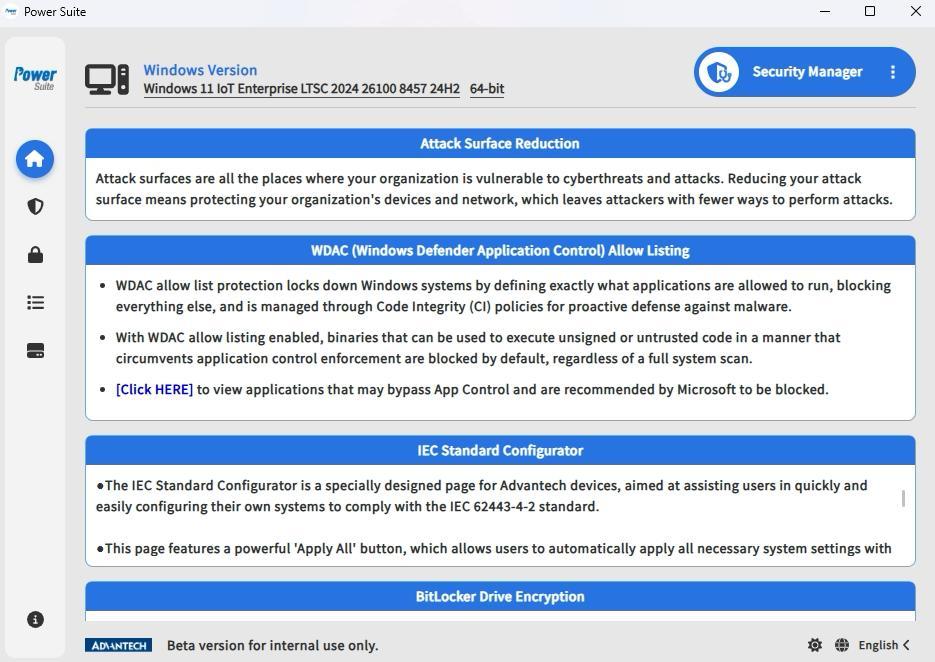
Security Manager gathers several Windows hardening features in one place: Attack Surface Reduction, WDAC Allow Listing, IEC Standard Configurator, and BitLocker Drive Encryption. These features are commonly configured through separate Microsoft security tools, policy settings, or command-line workflows.
Power Suite presents them as guided pages so users can review the device security posture and apply selected protections without jumping between multiple Windows consoles. This is useful when preparing Windows IoT systems for production lines, kiosks, HMI panels, and other OT deployments that require repeatable security setup.
Attack Surface Reduction
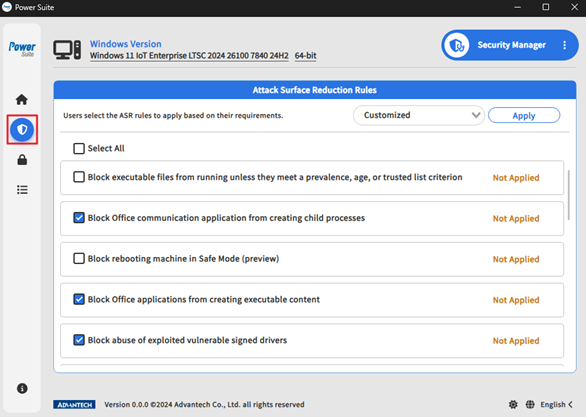
Attack Surface Reduction helps reduce common attack paths by restricting behaviors often used by malware and exploit chains. Microsoft Defender ASR rules can block or audit risky activities such as suspicious script behavior, child processes launched by vulnerable applications, and other patterns frequently abused by attackers.
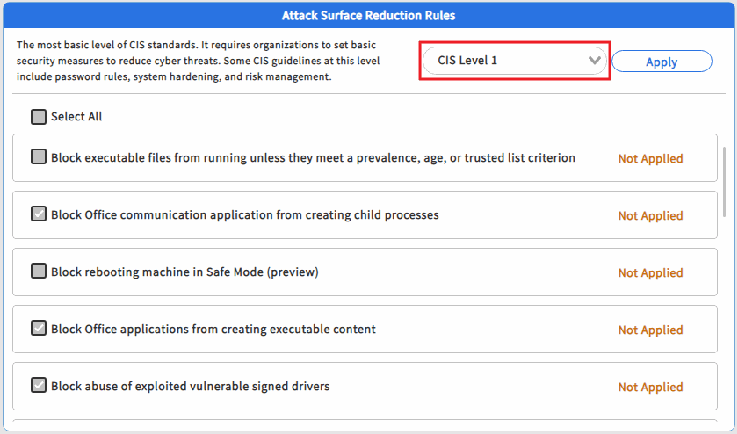
In Power Suite, users select an ASR option from the drop-down list. The predefined CIS Level 1 option is intended for basic security requirements and should cause little or no interruption to normal system operation. Choose Customized when the device image needs a specific set of ASR rules.
- Select the ASR option.
- If Customized is selected, choose the ASR rules to apply.
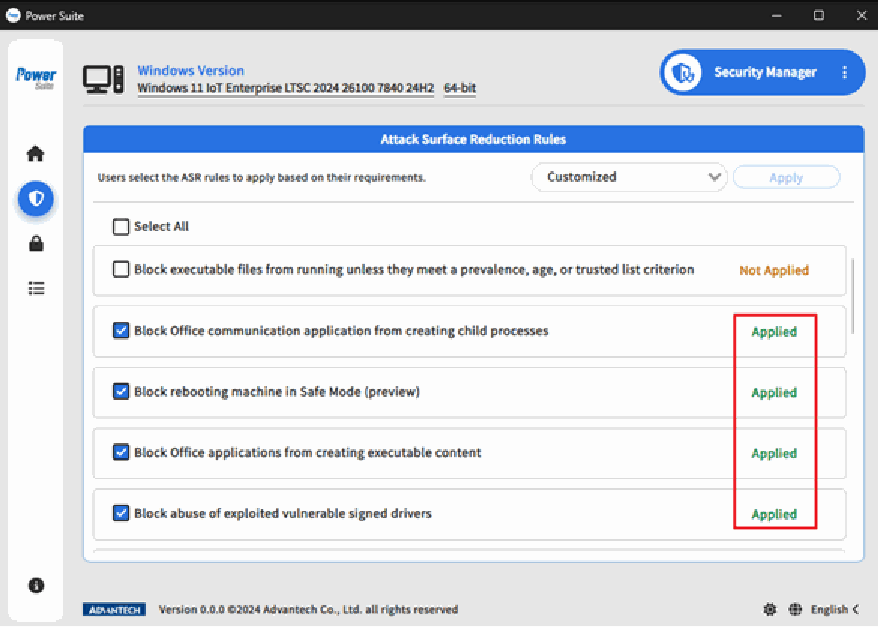
- Click Apply, then click Confirm in the confirmation dialog.
- Wait for Power Suite to apply the selected rules.
Before applying ASR, confirm that Microsoft Defender Antivirus and antimalware updates are installed. The manual specifies minimum platform release 4.18.2008.9 and minimum engine release 1.1.17400.5. Validate the rules with the applications, scripts, and maintenance tools required by the final device image.
IEC Standard Configurator
IEC image only. IEC Standard Configurator is intended for IEC images. Use it when preparing or checking an IEC-oriented system image.
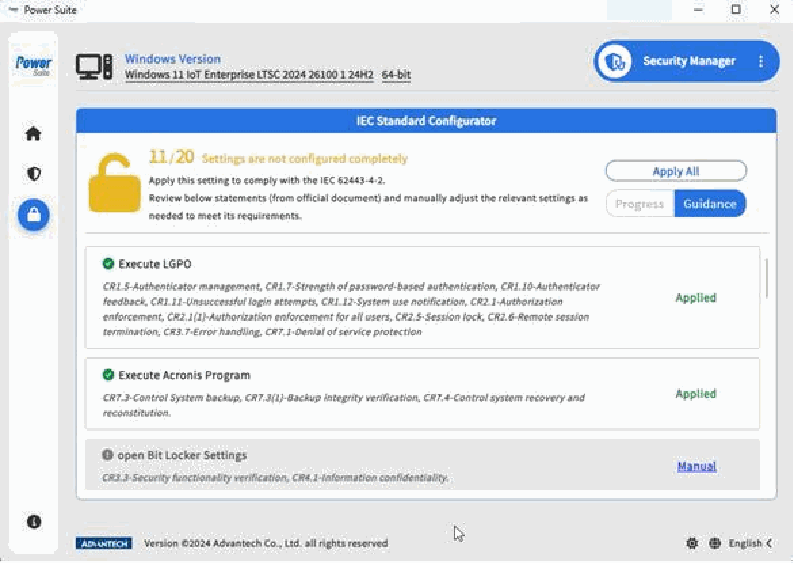
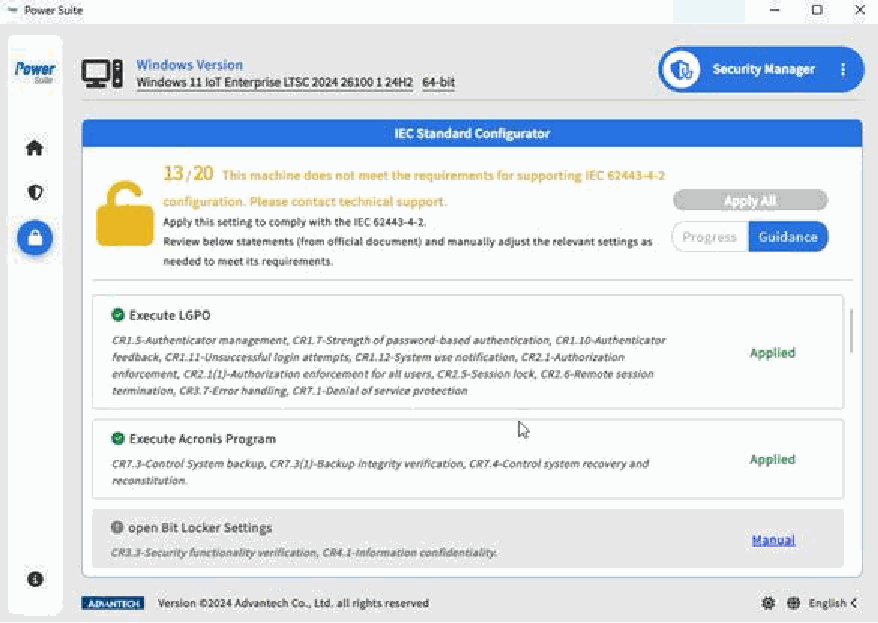
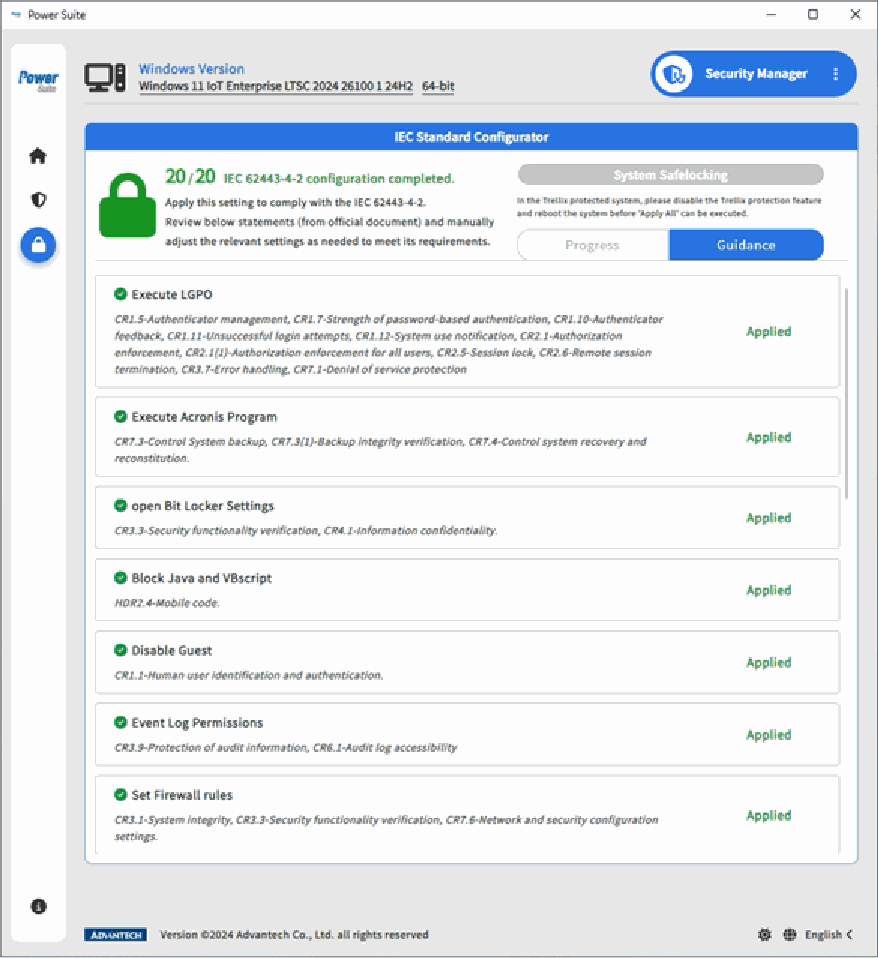
IEC Standard Configurator helps users review IEC 62443-4-2-oriented security settings from inside Power Suite. It provides guidance, progress, and apply actions so users can see which items are already configured and which items still require attention.
Advantech VoC indicates that 51 requirements are met, with 23 items covered by IEC Standard Configurator. Other items are integrated into IEC-compliant systems at the factory or require manual configuration. Power Suite helps reduce repetitive setup work, but users should still validate the final configuration against the project security policy.
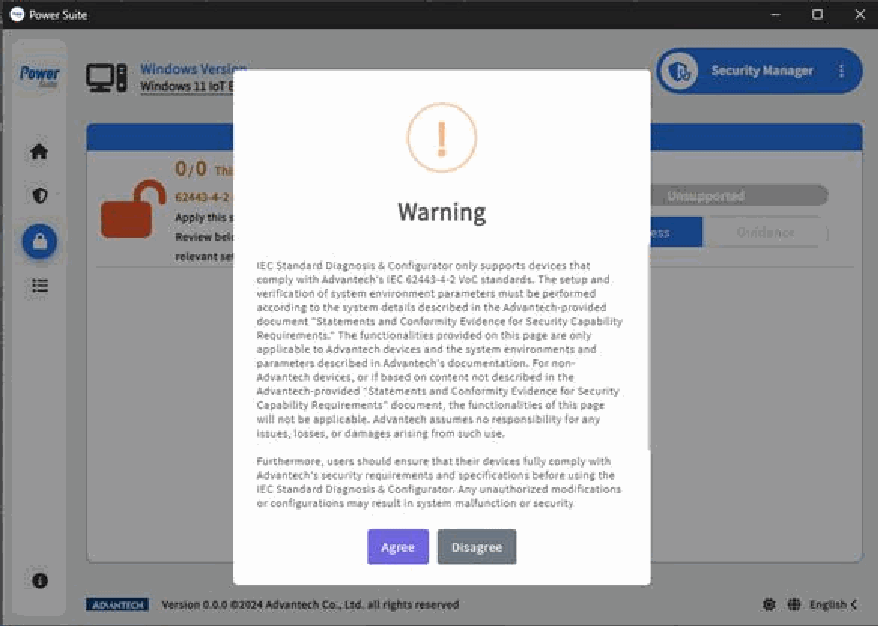
- Open IEC Standard Configurator. On first access, read the disclaimer and click Agree.
- Review Guidance to understand which system functions comply with IEC 62443-4-2 requirements.
- Review Progress to see which clauses currently comply.
- Click Apply All to update system settings that Power Suite can configure automatically.
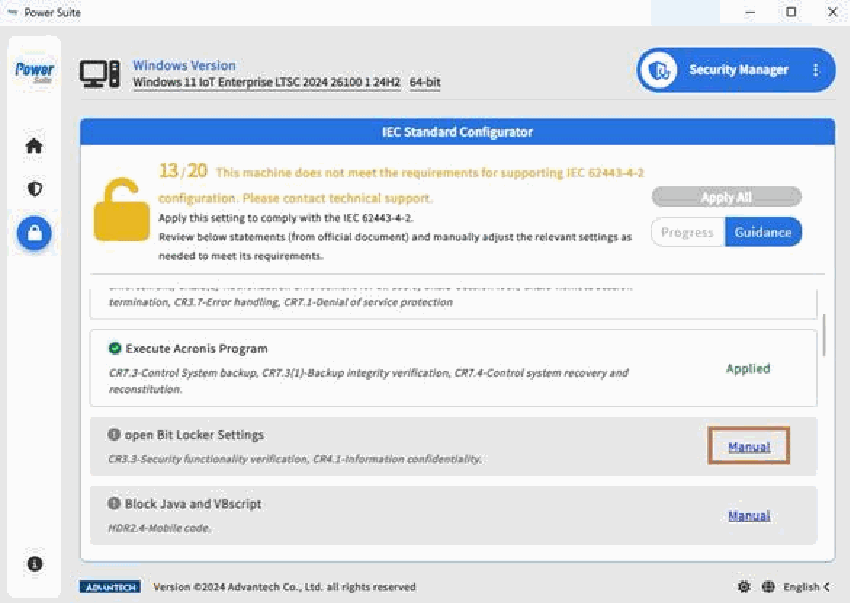
- For items marked for manual execution, click Manual to view the reference steps, then click Launcher APP to open the required application.
- Complete Trellix-related manual steps last.
- Use Diagnosis(Applied) to check whether the applied settings comply.
WDAC Allow Listing
WDAC Allow Listing is based on Microsoft Application Control concepts. Instead of allowing all code to run by default, application control uses an allow list so only trusted and approved applications, executable files, and drivers can run on the device.
Power Suite simplifies the workflow by scanning the OS drive, generating an allow list, enabling or disabling allow list protection, and exporting the generated list from one UI. Use this after the OS image, drivers, applications, and service tools are finalized. Application updates or newly installed tools may require a new scan and policy update.
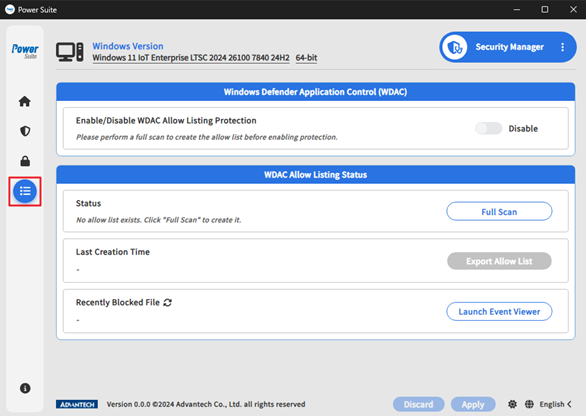
- Open WDAC Allow Listing. If no allow list exists, the enable/disable toggle and Export Allow List are unavailable.
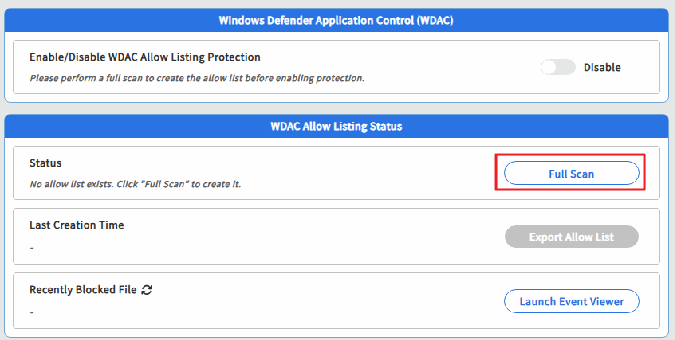
- Click Full Scan to scan the OS drive, usually drive C, and generate the allow list. The scan may take time; avoid using the system during the scan.
- Optionally select Auto-apply WDAC allow list after scan. When this option is selected and the scan succeeds, Power Suite prompts for a reboot.
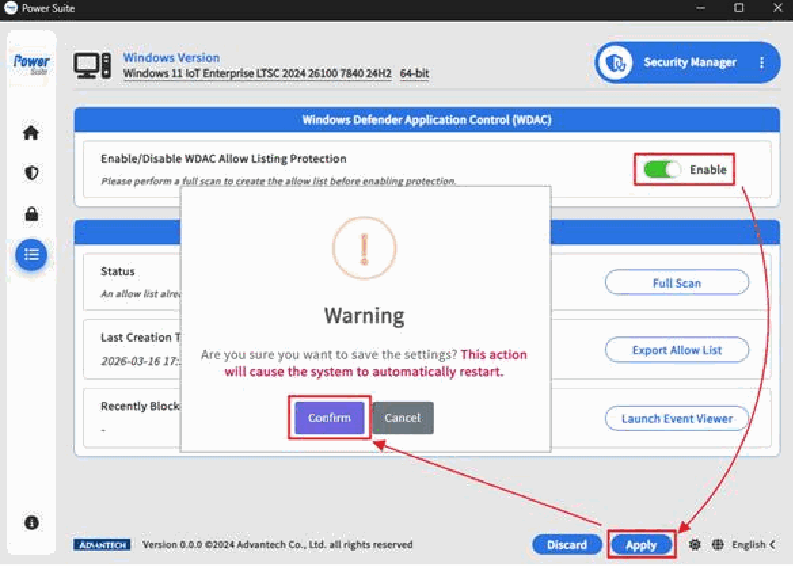
- After the allow list is generated, use the enable/disable toggle and click Apply to turn WDAC allow list protection on or off.
- Click Export Allow List to save the list as a file named like
CIExport_{xxxxxxxxxxxx}.txt. - If a user runs an executable that is not on the allow list, Power Suite shows a blocked executable dialog. The Recently Blocked File area shows the most recent blocked file.
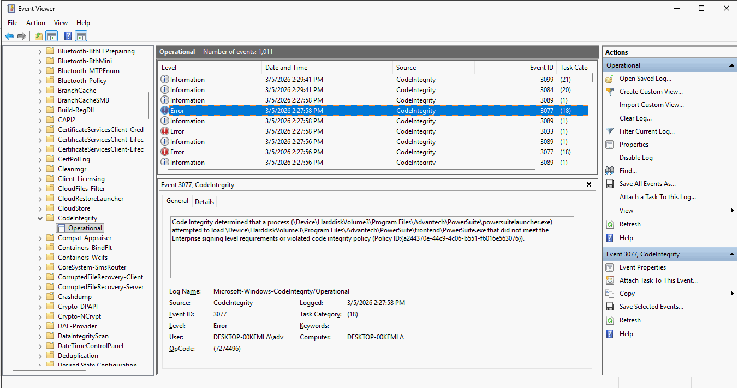
- Click Launch Event Viewer to open Windows Event Viewer at
Applications and Services Logs/Microsoft/Windows/CodeIntegrity/Operationalfor blocked activity details.
When WDAC allow list protection is enabled, files that are not included in the allow list are blocked when executed or loaded, and those blocked activities are recorded in the event log.
BitLocker Drive Encryption
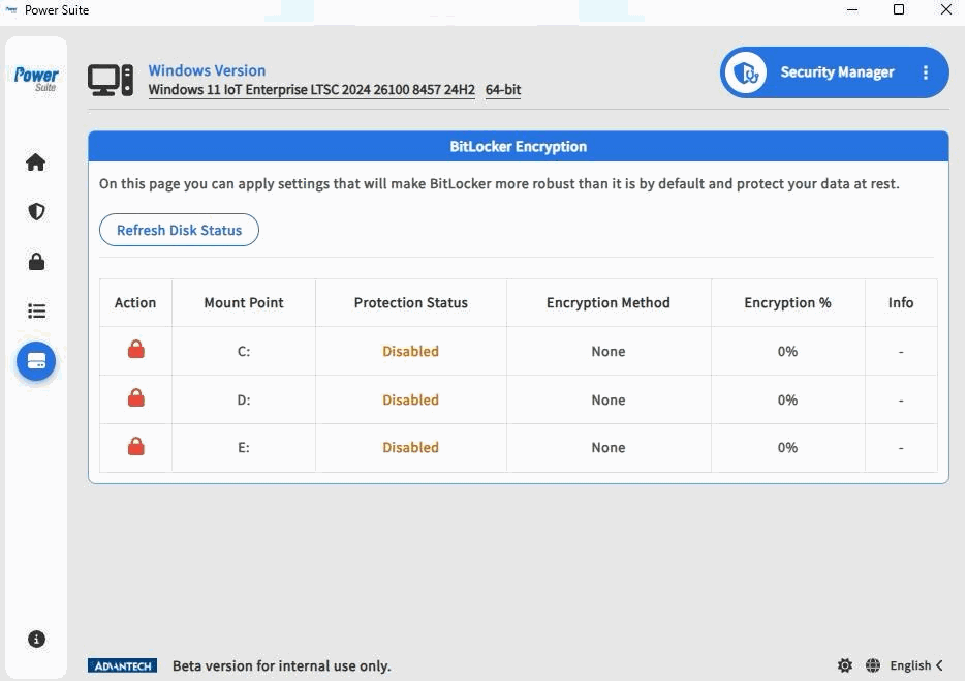
BitLocker encrypts Windows volumes to help protect data at rest. Security Manager provides drive status, encryption action buttons, encryption method information, encryption progress, and recovery information in one page.
Click Refresh Disk Status before configuring drives. If a flash drive or hard drive has no drive letter, Refresh Disk Status cannot detect it. Selecting Used disk space only may fail when the drive contains no data.
Encrypt the OS drive
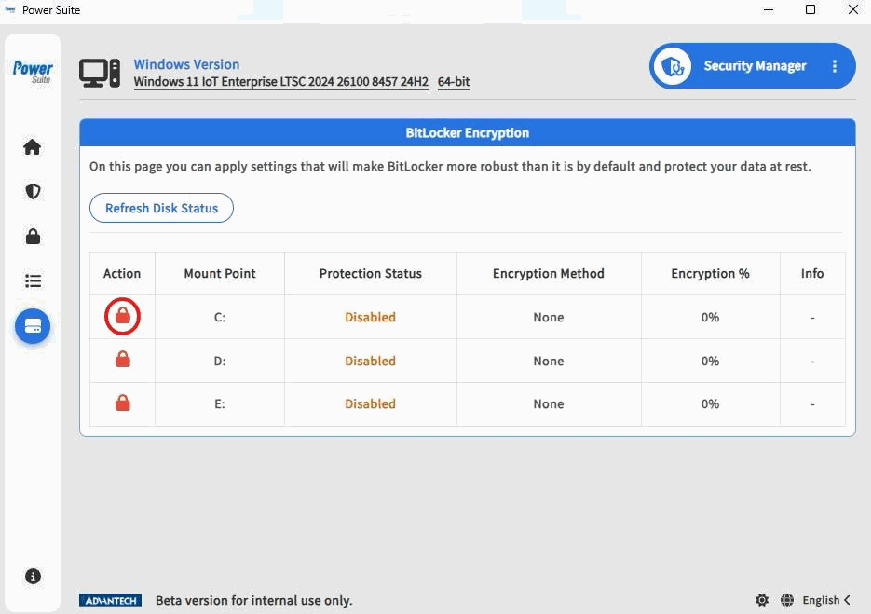
- Click the lock icon in the Action column for the OS drive, such as C:.
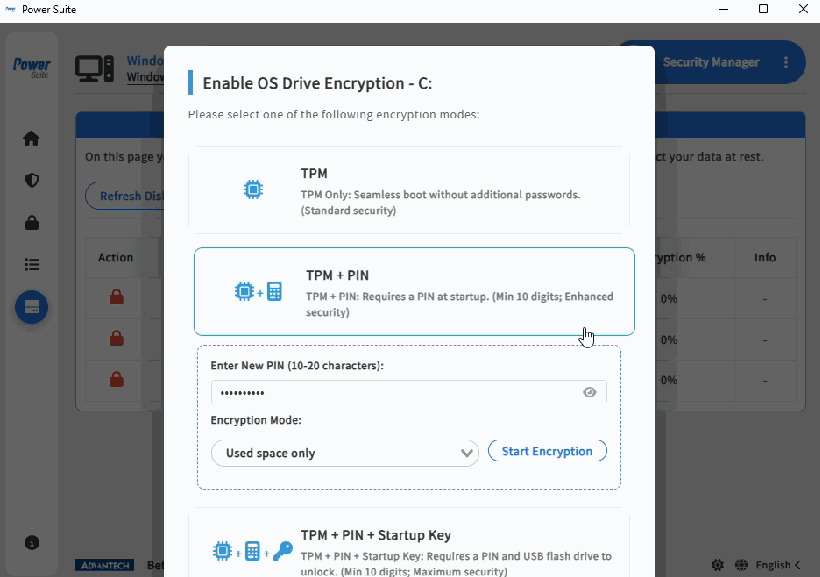
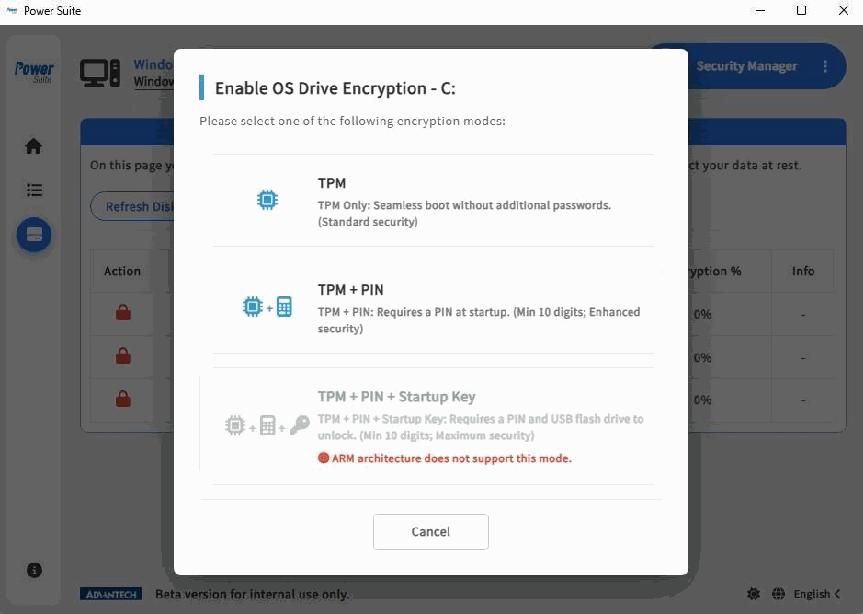
- Select an encryption type. OS drive options include TPM Only, TPM + PIN, TPM + PIN + Startup Key, and Non-TPM.
- For TPM Only, select Used Space Only or Full Disk Encryption, then click Start Encryption.
- For TPM + PIN, enter a PIN with 10 to 20 characters, select the encryption mode, then click Start Encryption.
- For TPM + PIN + Startup Key, enter a PIN, select a removable drive for the startup key, select the encryption mode, then click Start Encryption. If no removable drive is available, insert a USB drive and refresh.
- For Non-TPM mode, enter the password used to unlock the drive, select the encryption mode, then click Start Encryption.
On WoA devices, the OS drive does not support TPM + PIN + Startup Key protectors or Non-TPM mode.
Encrypt fixed and removable data drives
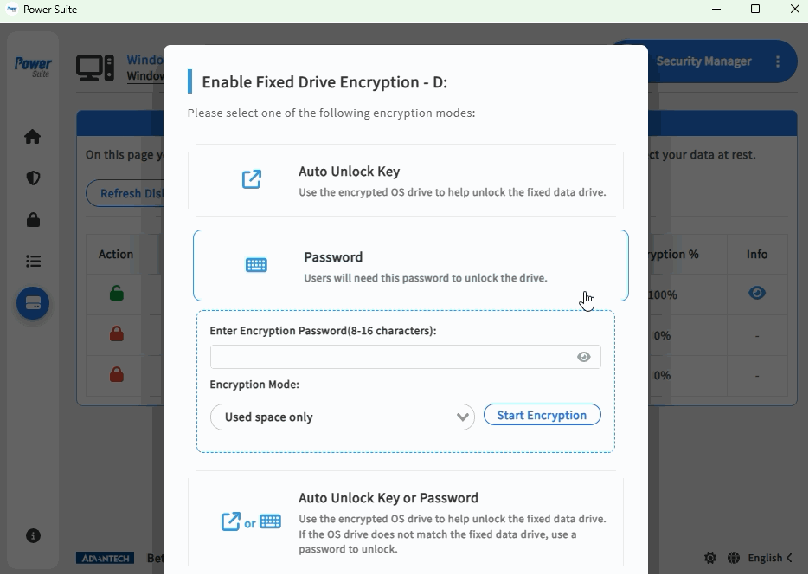
- Click the lock icon for the target fixed data drive or removable data drive.
- For a fixed data drive, choose Auto-Unlock, Password, or Auto-Unlock + Password when available. Auto-Unlock is available when the OS drive is already encrypted.
- If the OS drive is not encrypted, fixed data drives support password encryption.
- For removable data drives, enter a password, select the encryption mode, and click Start Encryption.
- Wait for encryption to complete and confirm the updated protection status.
View recovery information and decrypt a drive
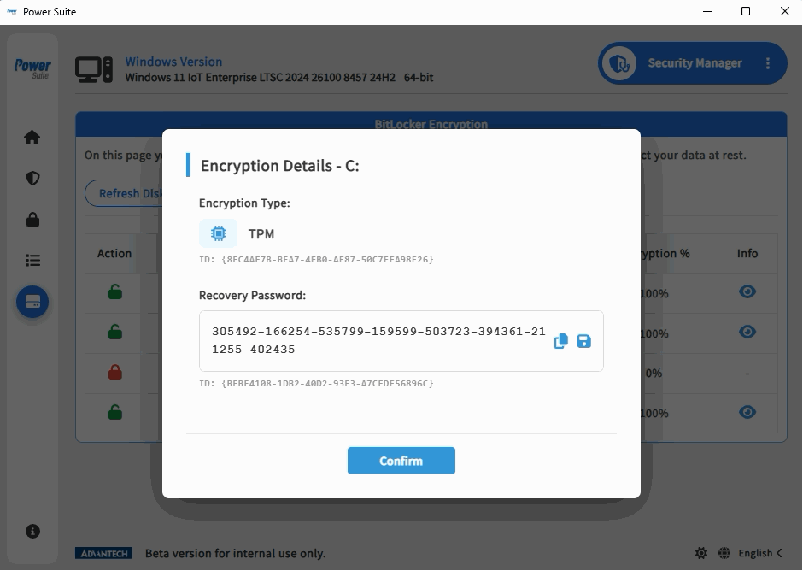
Click the eye icon in the Info column to view encryption type and Recovery Password. The recovery password is the final failsafe for unlocking a BitLocker-protected drive; use the copy icon to copy it or the save icon to save it as a file according to the deployment policy.
To decrypt an encrypted drive, click the locked icon in the Action column, review the confirmation dialog, and click Decryption.
Ubuntu Security Diagnosis
IEC Standard Configure
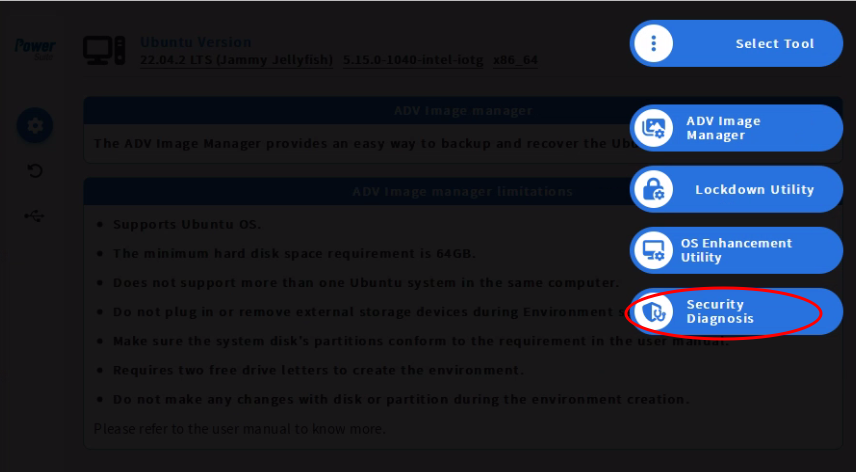
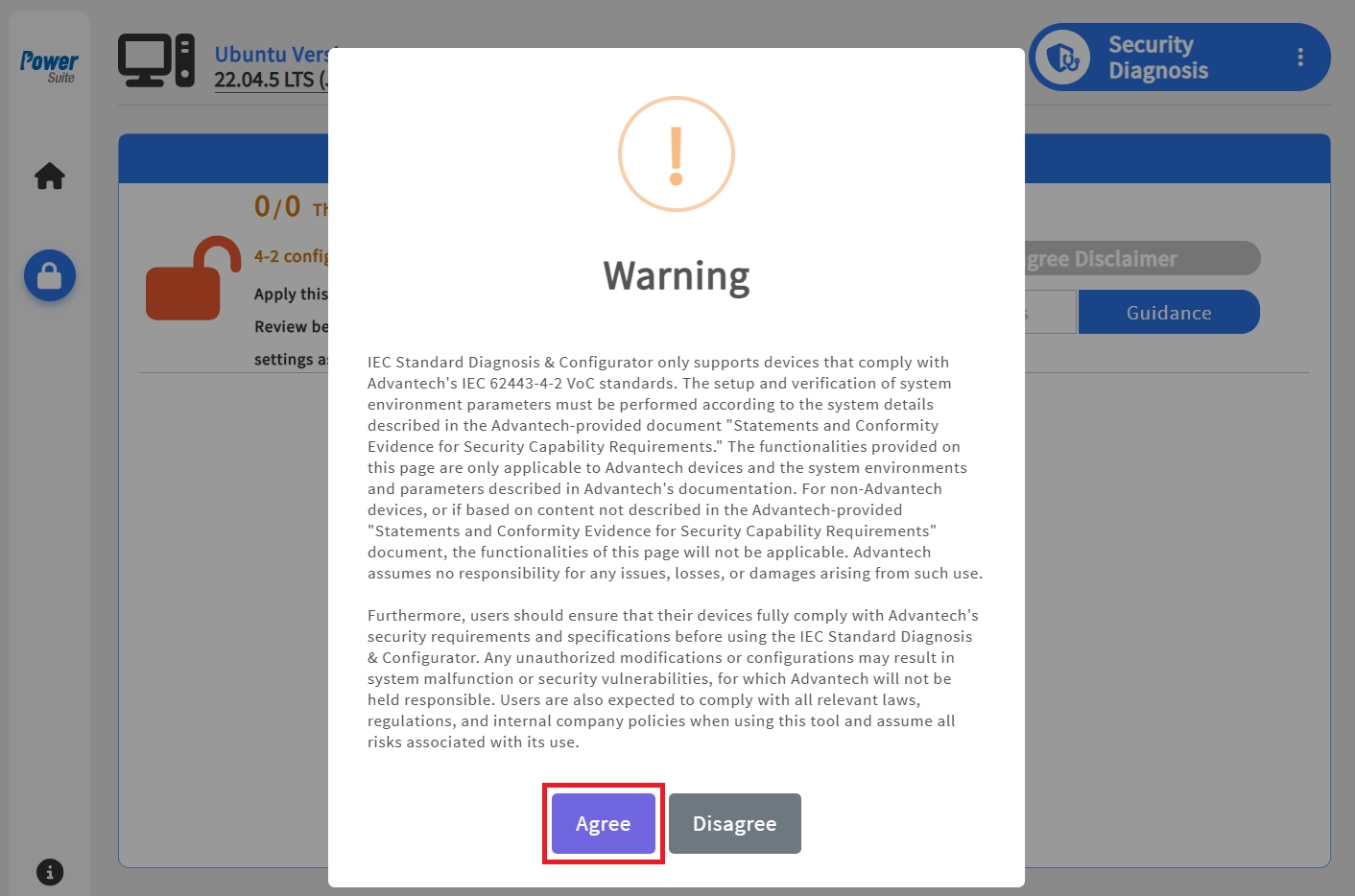
Ubuntu Security Diagnosis provides IEC Standard Configure for checking and applying basic security settings. Users open Security Diagnosis, select IEC Standard Configure, read the disclaimer, and click Agree.
After the disclaimer is accepted, Power Suite redirects to the Security page and performs a system scan based on IEC 62443 requirements. The result helps users understand the current security configuration before applying changes.
Learn More
Microsoft Learn Supplement
- Attack surface reduction rules overview - Microsoft Defender ASR rule background.
- Application Control for Windows - Application control and WDAC concepts.
- BitLocker overview - BitLocker encryption and protector background.