Lockdown Utility
Configure Windows IoT and Ubuntu lockdown settings for dedicated-purpose devices.
Platform Differences
| Feature | Windows | Ubuntu |
| Automatic logon | Auto sign-in with user name, password, and domain. | Automatic sign-in with selected user account. |
| Keyboard control | Keyboard Filter and breakout key. | Keyboard breakout and predefined key combinations. |
| Disk protection | Unified Write Filter. | Disk Protection. |
| Boot UI | Unbranded Boot / advanced boot options. | Hide Ubuntu logo. |
Windows Lockdown
Lockdown Settings
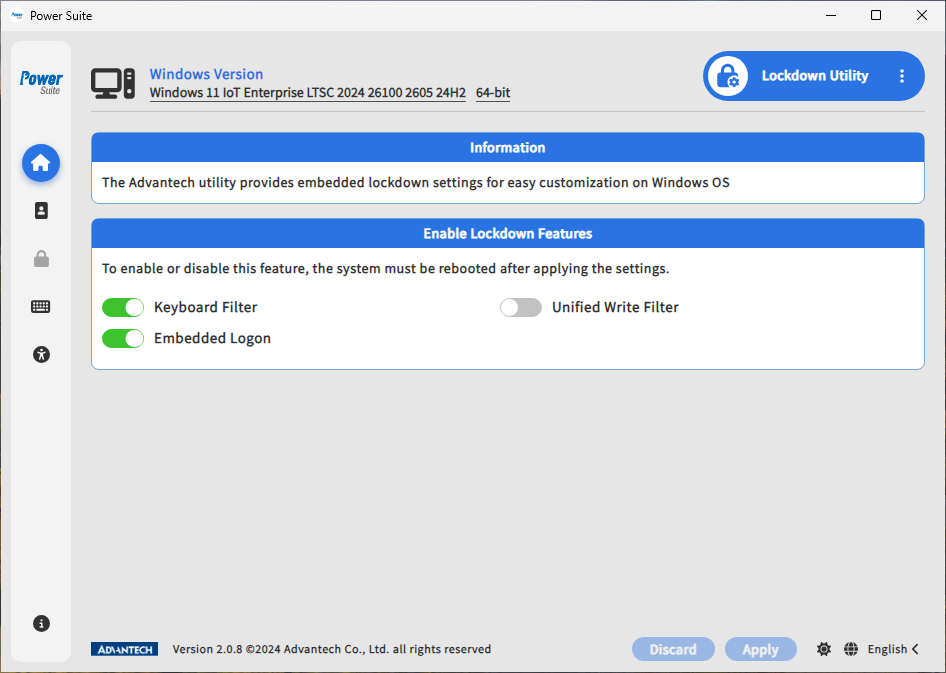
Lockdown Settings is the entry point for enabling Windows device lockdown features before configuring them from the left menu. Each toggle corresponds to a lockdown feature, and disabled toggles prevent the related menu item from being used.
Use this page when preparing a Windows IoT device for a dedicated role such as kiosk, operator panel, HMI terminal, or production workstation. Applying lockdown settings usually requires a reboot so the operating system can load the required feature state.
Automatic Logon
Automatic Logon signs in with a configured account when the device boots. It is useful for unattended devices that must return to service automatically after power loss, scheduled restart, or maintenance reboot.
In Power Suite, users enter the user name, password, and domain information from the Lockdown Utility UI. This can be combined with Keyboard Filter, write protection, boot UI customization, or kiosk configuration to reduce operator access to the standard Windows desktop.
Use a least-privilege account when possible, and validate the startup application flow before deployment.
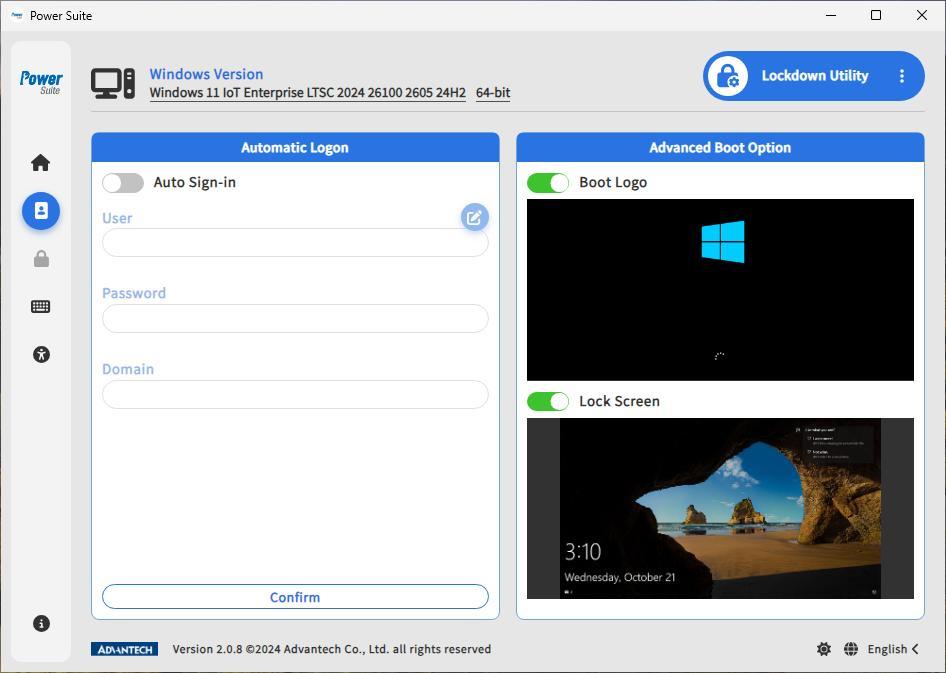 Windows Lockdown Utility - Automatic Logon and Advanced Boot Option
Unified Write Filter
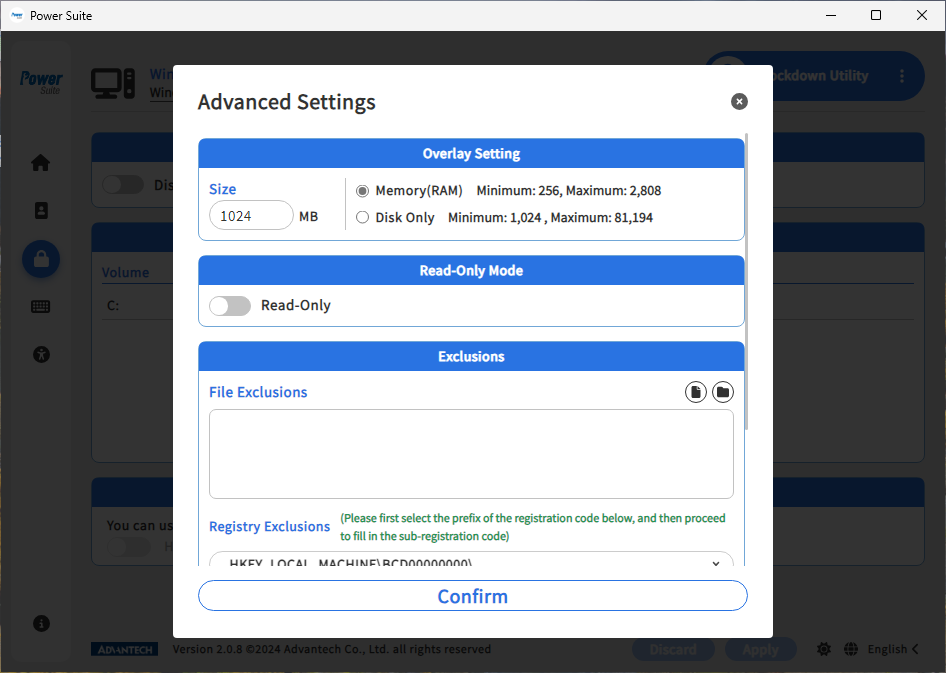
Unified Write Filter is a Microsoft Windows IoT feature that protects selected volumes by redirecting writes to an overlay. The protected volume appears writable to applications, but changes are stored in the overlay instead of being committed to the protected disk.
Power Suite lets users enable UWF and configure overlay behavior and exclusions without manually using command-line or policy tools. This is useful for public, shared, or industrial devices that need to return to a known-good state after reboot.
Use exclusions only for files, folders, or registry keys that must persist after restart. Devices protected by UWF still need a servicing plan for updates and application maintenance.
Keyboard Filter
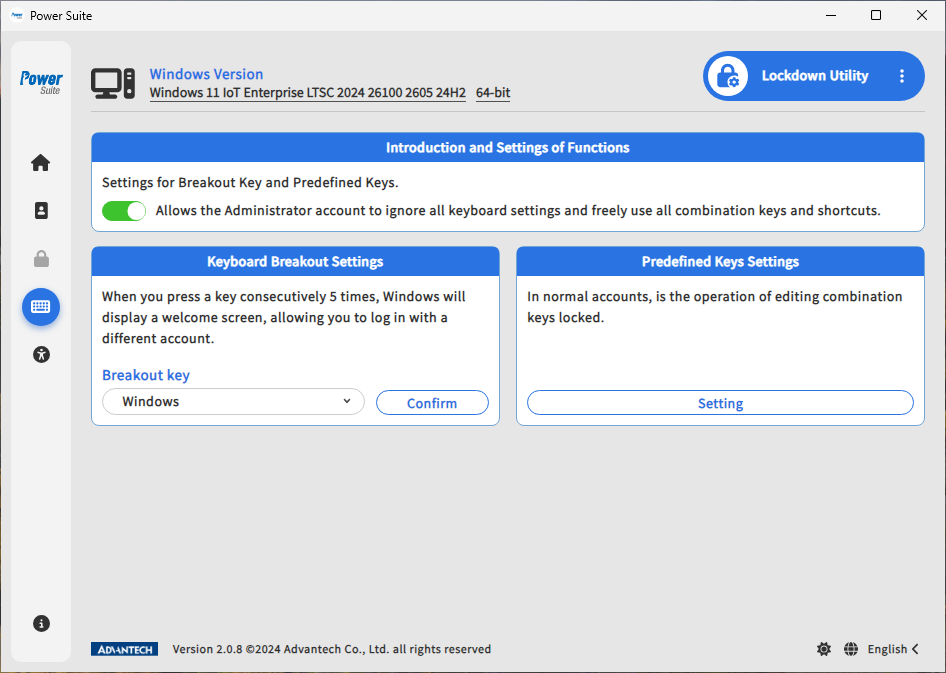
Keyboard Filter is a Microsoft Windows lockdown feature for suppressing unwanted key presses and key combinations. It helps prevent users from opening system screens, switching applications, invoking shortcuts, or leaving the intended device experience.
Power Suite provides UI controls for configuring keyboard restrictions and a breakout key sequence. Pressing the breakout key five times presents the Welcome screen so service staff can sign in with another account when maintenance is required.
Keyboard restrictions should be tested with the final application and peripherals so required operator input remains available.
Embedded Logon / Custom Logon
Embedded Logon is the Power Suite name for customizing the Windows sign-in and shutdown experience. Microsoft documents this native feature as Custom Logon. It can hide or suppress selected Windows UI elements around the Welcome screen, Ctrl + Alt + Del screen, and shutdown flow.
This is useful when a Windows IoT device should behave like an appliance instead of a general-purpose PC. For example, a device can hide login UI, reduce visible Windows branding, and move directly into the intended application experience.
If the Blocked Shutdown Resolver screen is suppressed, Windows may close blocking applications during shutdown without asking the user to confirm. Validate this behavior when unsaved user data is possible.
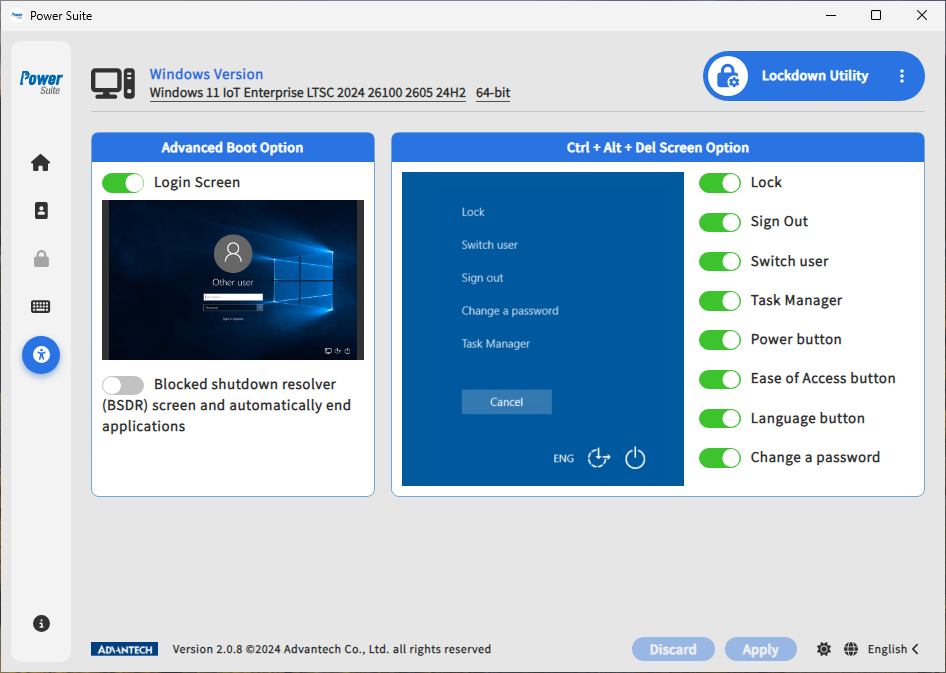
Advanced Boot Option
Advanced Boot Option controls startup UI such as the Microsoft boot logo and lock screen. Microsoft provides related native functionality through Unbranded Boot, which is designed for dedicated-purpose devices that need a cleaner startup experience.
Use this feature when the device should present a product-like boot flow instead of standard Windows startup visuals. It pairs well with Automatic Logon and Embedded Logon for unattended kiosks, signage systems, and operator panels.
Boot UI changes require validation on the target hardware and may require reboot before the final behavior is visible.
Ubuntu Lockdown
Automatic Logon
Ubuntu Automatic Logon signs in with the specified user account after reboot. This is useful when a device needs to launch into an operator environment without manual login after power recovery or maintenance restart.
Configure this only for accounts that are appropriate for unattended operation, and verify that the target application or service starts as expected after reboot.
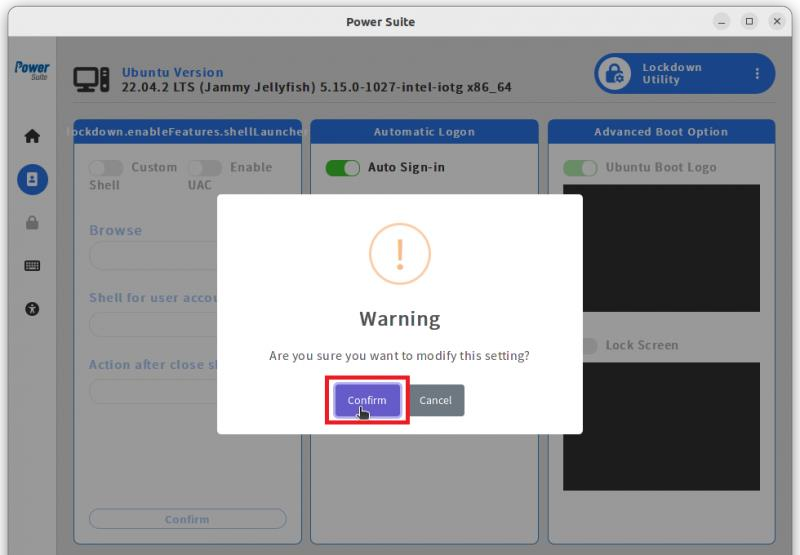
Keyboard Filter
Ubuntu Keyboard Filter lets users configure a breakout key sequence and predefined key combinations. This is useful for kiosk and operator scenarios where users should stay inside the intended application flow.
Test the selected restrictions with the final keyboard and input devices before deployment.
Keyboard Breakout Settings
Keyboard Breakout Settings configure a key that can be pressed five times to return to the logon screen. This gives service staff a controlled way to leave the locked-down account and sign in with another account.
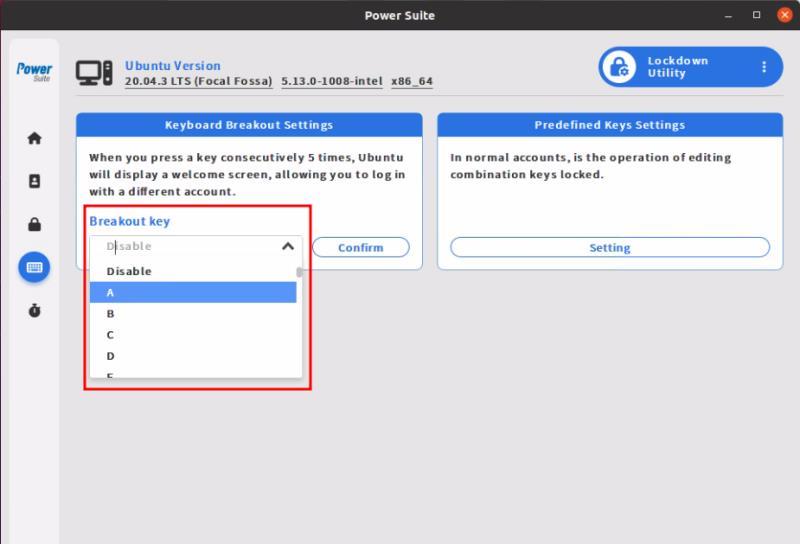
Predefined Keys Settings
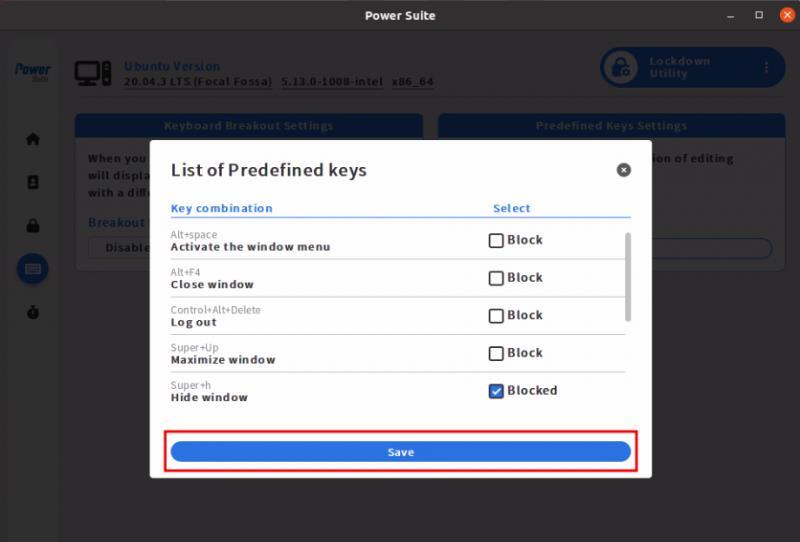
Predefined Keys Settings block selected key combinations to avoid unallowed actions on a locked-down Ubuntu device. Use this when operators should not be able to trigger desktop shortcuts or leave the intended application workflow.
- In Predefined Keys Settings, click Setting.
- Select the combination keys that should be blocked.
- Click Save to save the setting.
After the setting is saved, pressing the selected combination keys no longer performs the normal function.
Disk Protection
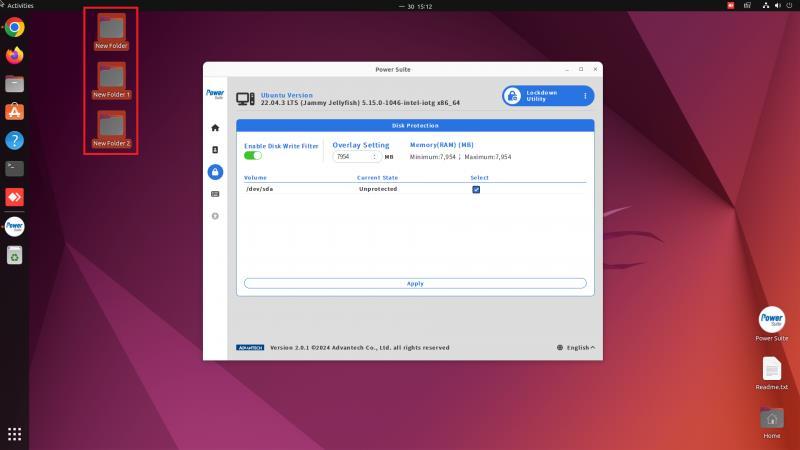
Disk Protection restores the Ubuntu system to its original state after reboot. For example, if users add folders to the desktop while protection is enabled, those folders disappear after the next reboot.
Use this feature when a device should remain consistent between sessions, such as public terminals, production stations, or training devices. Plan persistent data locations carefully before enabling protection.
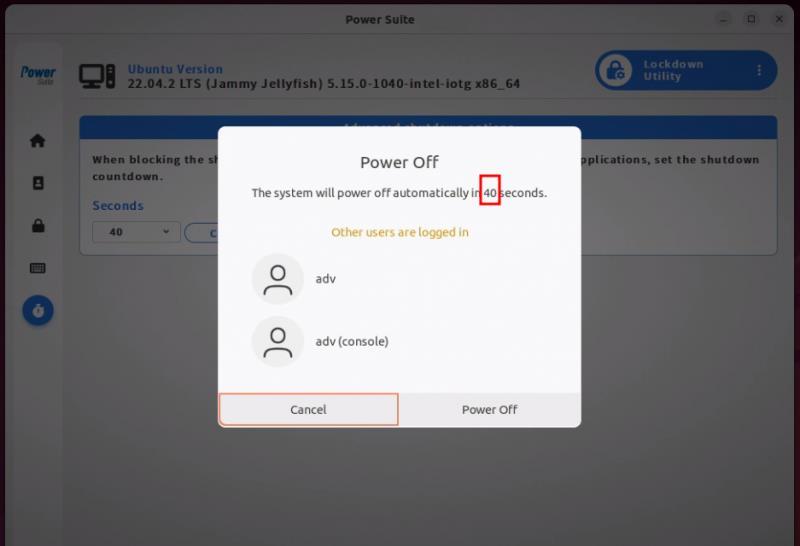
Advanced Shutdown Option
Advanced Shutdown Option changes the countdown seconds shown after pressing the power off button. This gives administrators more control over shutdown timing for managed Ubuntu devices.
Use this setting when a deployment needs a predictable shutdown countdown for operators or service workflows.
Shell Launcher
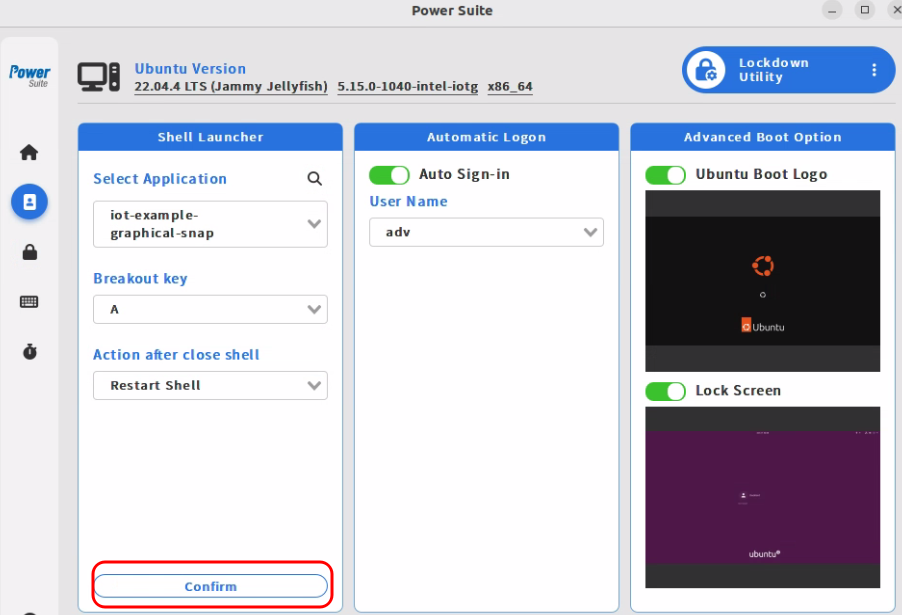
Shell Launcher automatically runs a selected snap application or executable file on power on. This helps turn an Ubuntu system into a dedicated application device instead of a general desktop environment.
Users can select a breakout key to leave shell launcher mode after pressing the key five times. If no breakout key is set, remote SSH can be used for recovery or maintenance.
Advanced Boot Option
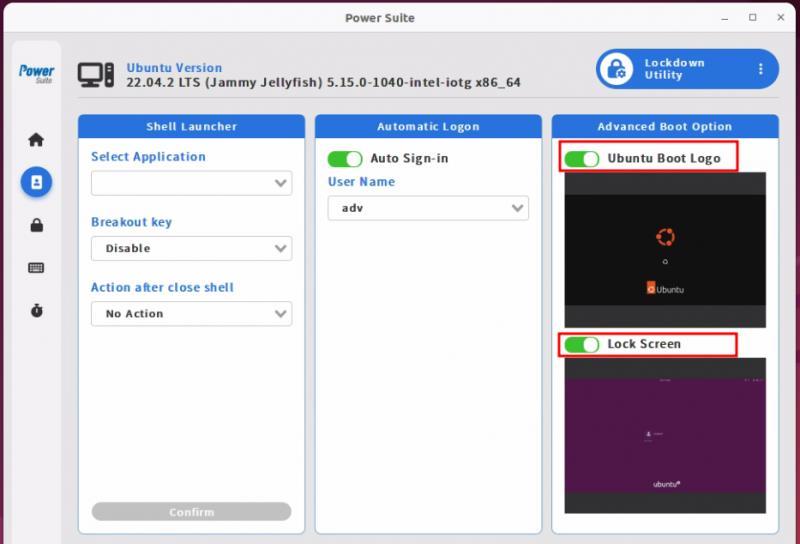
Ubuntu Advanced Boot Option hides the Ubuntu logo the next time the device reboots or enters the lock screen. This supports a cleaner dedicated-device experience for production or customer-facing systems.
Use this setting together with Automatic Logon or Shell Launcher when the system should behave like a dedicated appliance instead of a general Ubuntu desktop. (p. 6) Apply the change, confirm the setting, and restart the device to verify the final boot and lock-screen behavior.
Learn More
Microsoft Learn Supplement
- Unified Write Filter - Protects volumes by redirecting writes to an overlay.
- Keyboard Filter - Suppresses unwanted key presses and key combinations.
- Custom Logon - Suppresses selected Windows sign-in and shutdown UI elements.
- Unbranded Boot - Suppresses Windows startup UI elements.
- Shell Launcher - Replaces the default Windows shell for kiosk-like scenarios.