OS Enhancement Utility
Configure selected Windows IoT and Ubuntu operating-system behaviors from a Power Suite UI.
Platform Differences
| Feature | Windows | Ubuntu |
| General settings | Touch, BSOD behavior, Hibernate, Windows Update, Device Control. | Notification, Ubuntu Update, Hibernate, Device Control, Kernel Panic Reboot, Touch Control. |
| Dedicated mode | Kiosk mode. | Soft Real-time and benchmark test. |
| Power | Energy settings based on Windows-provided items. | Energy Saving for C-state and PCI device settings. |
| Firmware update | WoA devices only. | Not supported. |
Windows OS Enhancement
General Settings
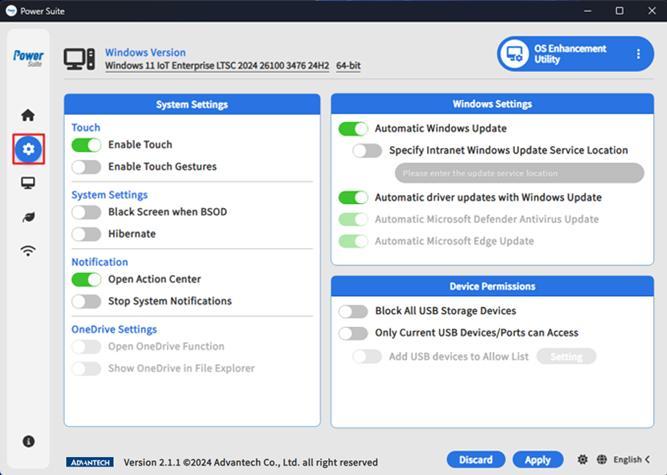
General Settings collects frequently used Windows IoT options in one page, including touch behavior, BSOD display behavior, hibernate, Windows Update, and device control. These settings normally live in separate Windows interfaces or require policy, command-line, or device-level configuration.
Use this page when preparing a device image that must behave consistently in production. For example, a device can disable unnecessary notifications or update behavior, tune touch input, or control selected device access before deployment.
Kiosk
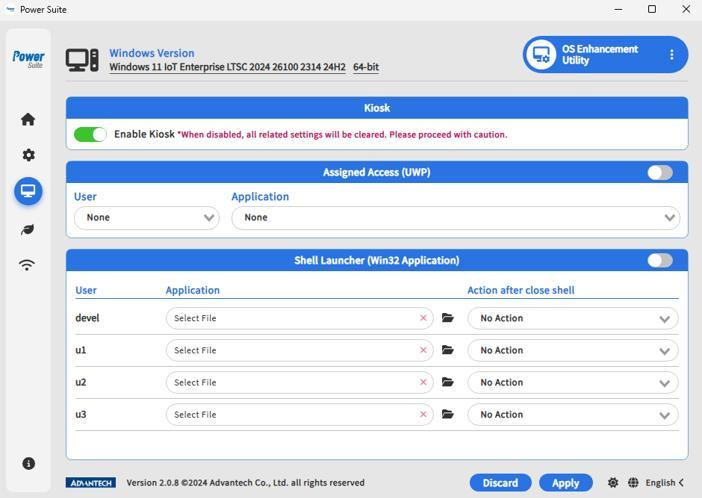
Kiosk mode is used when a Windows device should run a specific task or present a restricted user experience. Microsoft provides this type of configuration through Assigned Access, which can limit users to a single app or a controlled set of apps.
Power Suite exposes the kiosk workflow through a simple toggle and configuration page. This is useful for public terminals, retail devices, signage systems, HMI panels, and other devices where users should not access the full desktop.
Disabling and applying the Kiosk toggle purges current kiosk settings, so confirm the device state before applying changes.
Energy
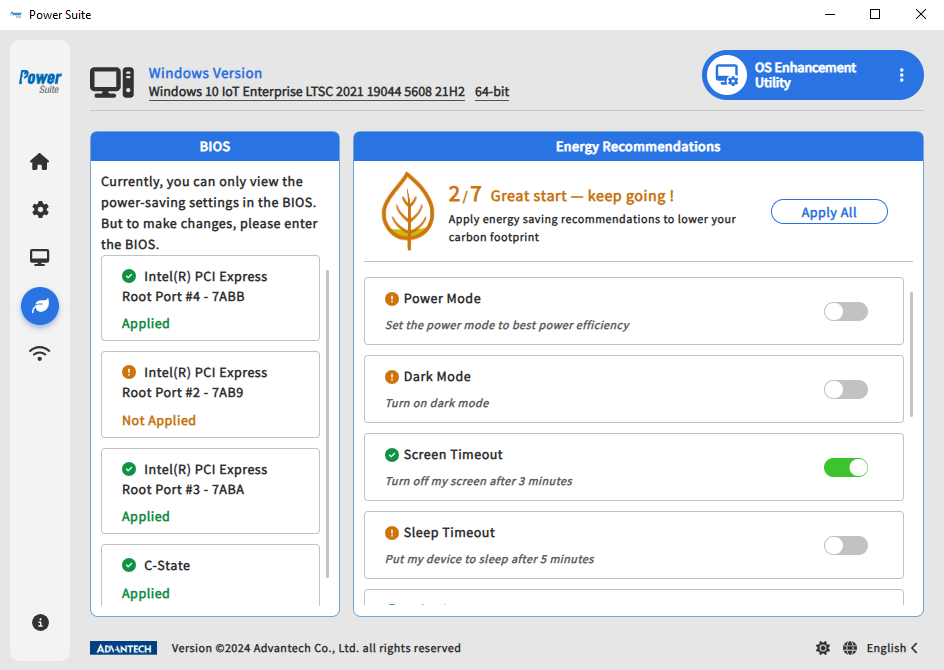
Energy gathers settings that affect power consumption. Applying recommended values can help reduce power use, improve battery life, and lower the thermal load for edge devices that operate for long periods.
Power Suite reads some device information through Advantech SUSI APIs. If the SUSI package is not installed or the platform does not expose a setting, status can appear as No Data, Not Available, or Not Support.
Use Energy settings after validating the performance requirement of the target workload, because aggressive power savings can affect latency or device responsiveness.
Wi-Fi Filter
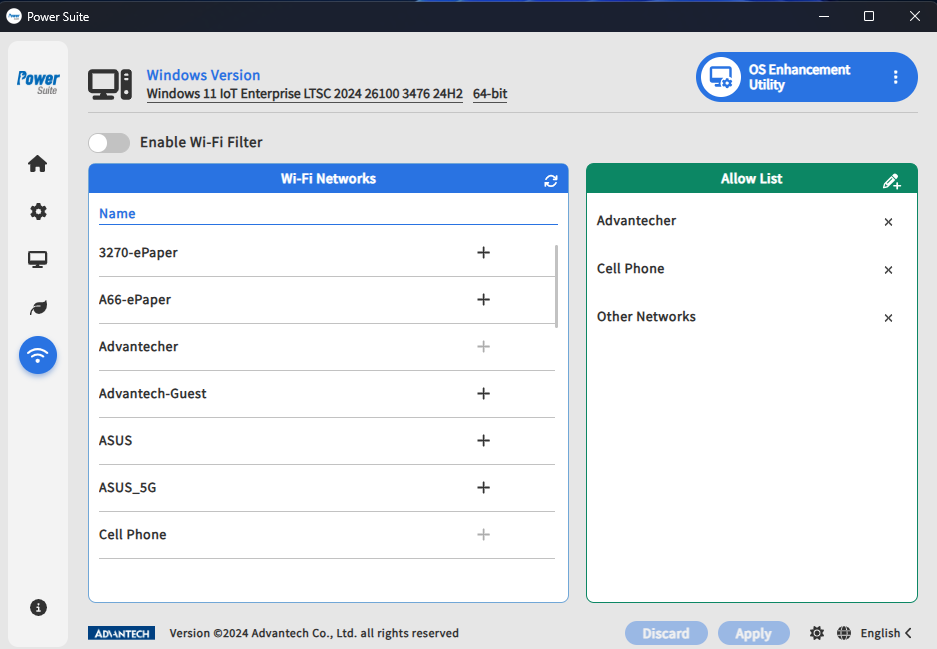
Wi-Fi Filter helps control which wireless networks a device can see and use. When configured, Power Suite allows only known SSIDs in the available network list and hides networks that are not on the allowed list.
This is useful for corporate or factory deployments where devices should connect only to approved infrastructure. It reduces the chance that an operator accidentally connects a production device to an unknown hotspot or guest network.
SSIDs with emojis or Unicode characters are unsupported and are hidden from the available list.
Firmware Update
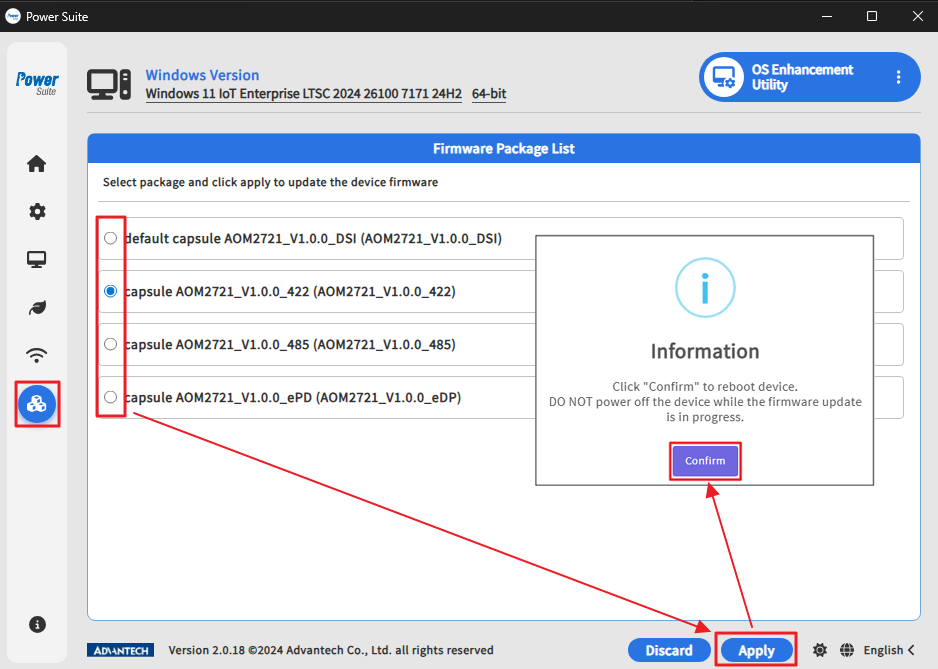
Firmware Update is available only on WoA devices. Firmware packages are protected with AES-256 encryption and stored in a specific folder before being delivered to the device for installation during the next reboot.
Use this feature to keep important system components current on supported WoA platforms. Confirm the selected firmware package before applying it, because installation occurs during reboot.
Ubuntu OS Enhancement
Notification
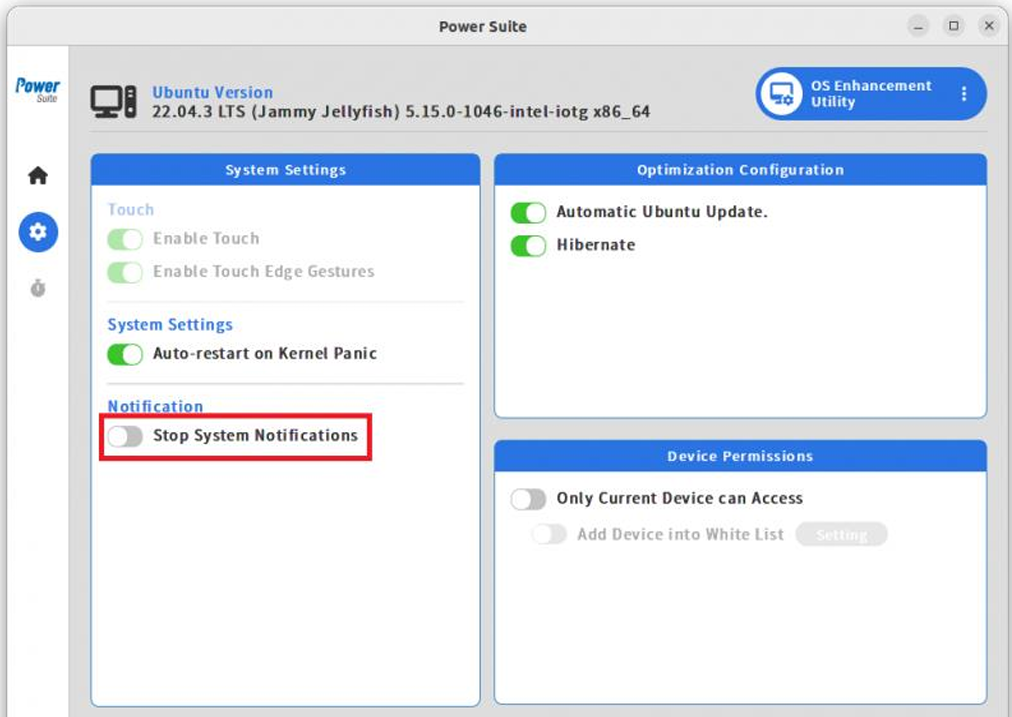
Notification control stops system notifications by turning on Do Not Disturb in the Ubuntu notification bar. This is useful for devices that should not show desktop notification popups during operation.
Ubuntu Update
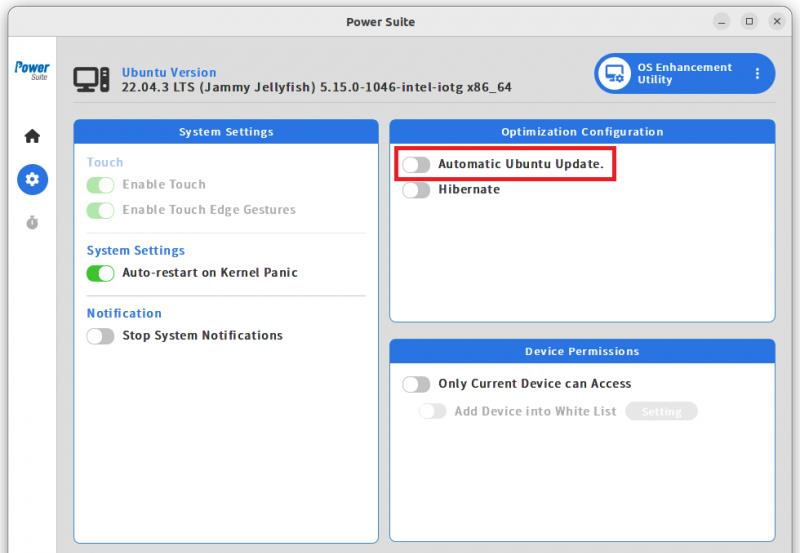
Ubuntu Update enables or disables automatic Ubuntu updates and update notifications. Disabling Automatic Ubuntu Update also disables Ubuntu Security Update and other updates, including Snap package updates.
Use this setting when a production device requires a controlled maintenance window instead of automatic update behavior. Plan a manual update process before disabling automatic updates.
Hibernate
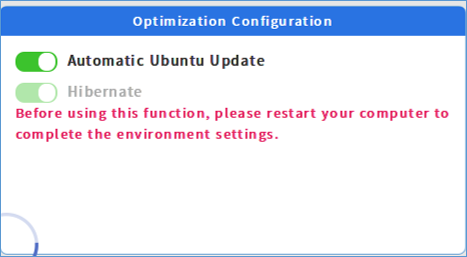
Ubuntu Hibernate first allocates swap space on the hard drive larger than the device memory size. This is required because Ubuntu does not provide the same default hibernation setup as Windows.
Configuration can take about 5 to 6 minutes depending on memory size. When entering Power Suite OS Enhancement for the first time, restart the device before enabling hibernate.
Device Control
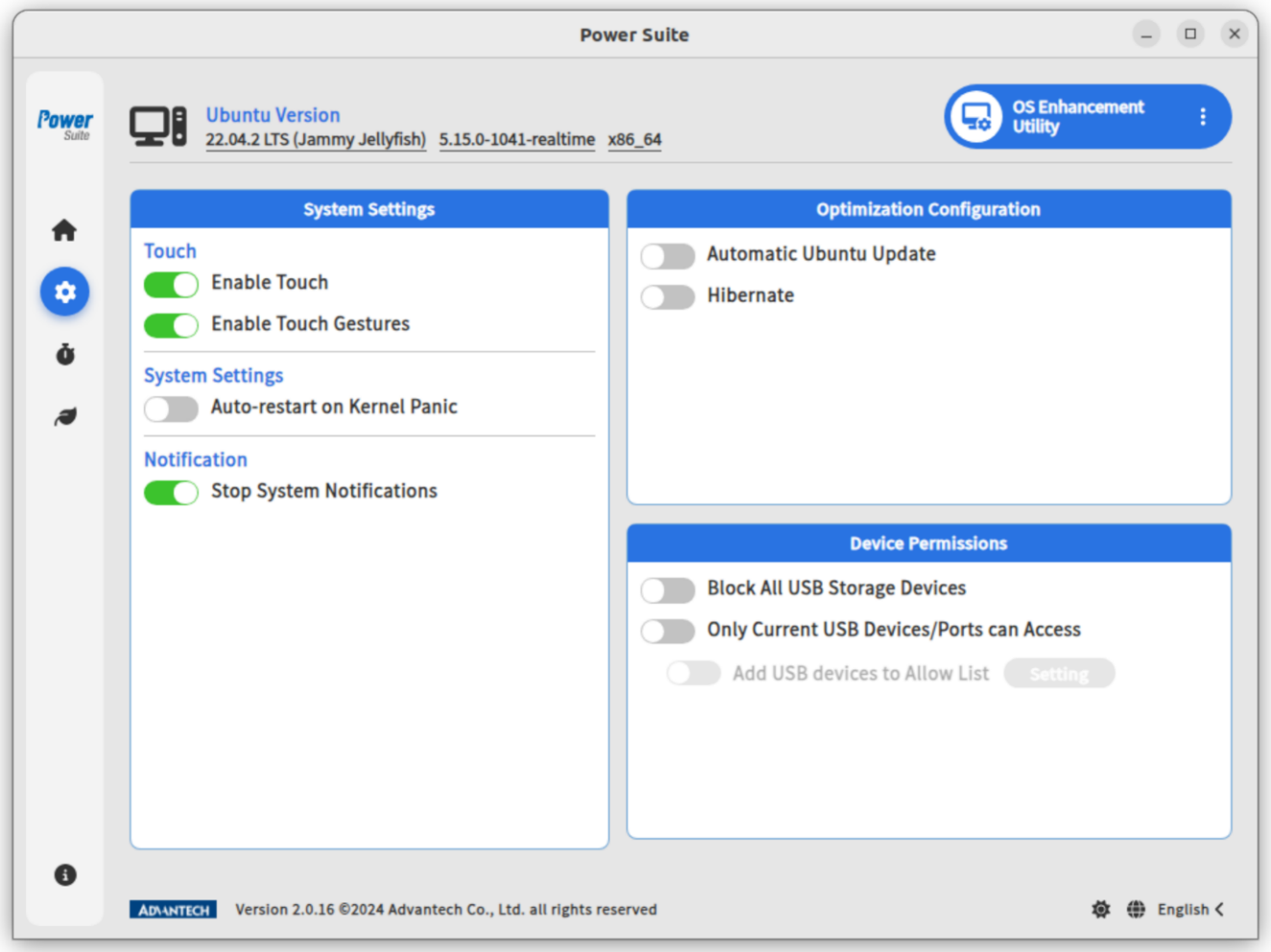
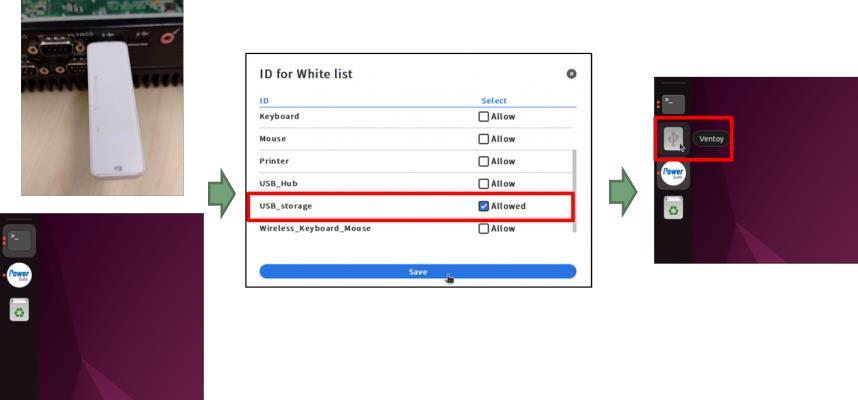
Device Control manages USB storage access on Ubuntu. Block All USB Storage Devices disables all USB storage devices inserted into USB ports. Only Current Device Can Access limits access to devices that are already connected or explicitly whitelisted.
This is useful for production systems where removable storage should be restricted to reduce unauthorized data transfer or unexpected device changes.
Kernel Panic Reboot
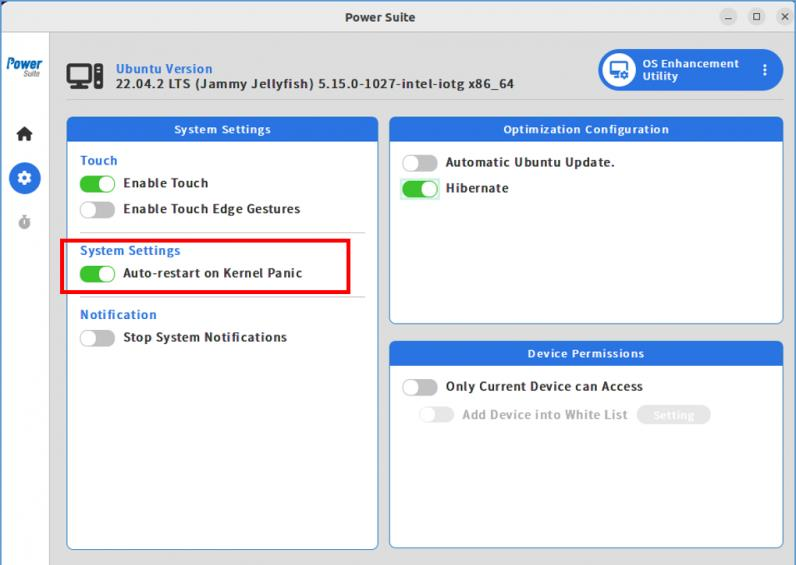
Kernel Panic Reboot automatically restarts Ubuntu the next time the system encounters a kernel panic. This helps unattended devices return to operation instead of remaining stopped at a panic state.
- Open OS Enhancement Utility.
- Enable Auto-restart on Kernel Panic.
- Restart the system to apply the setting.
After the setting is applied, Ubuntu automatically reboots when a kernel panic occurs.
Touch Control
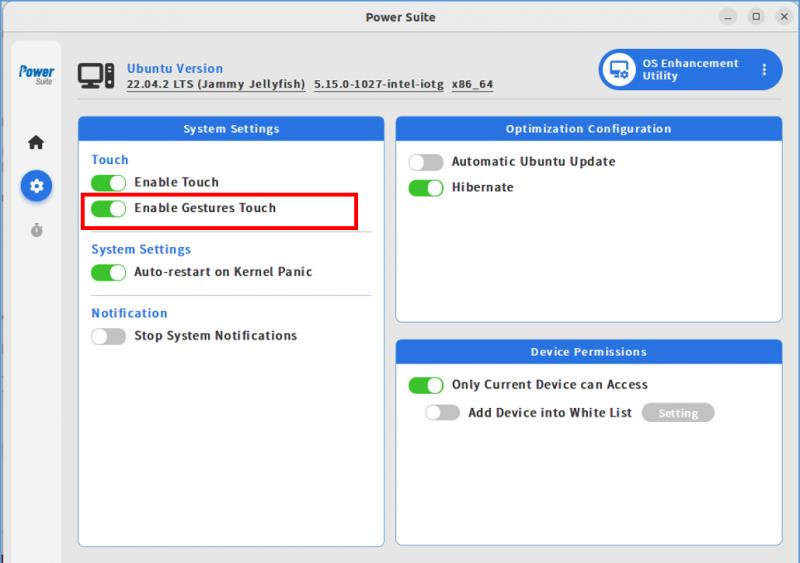
Touch Control manages two Ubuntu touch behaviors: touch input and gesture touch. Enable Touch allows the touch-screen function, while Enable Gestures Touch allows gesture behavior such as edge triggering, workspace switching, opening the Activities Overview, and multi-touch gestures.
- Open OS Enhancement Utility.
- Use Enable Touch to turn touch input on or off.
- Use Enable Gestures Touch to turn gesture touch on or off.
The default state is touch enabled and gestures enabled. If Enable Touch is turned off, Enable Gestures Touch is disabled at the same time. When entering Power Suite OS Enhancement for the first time, restart the device before enabling the gesture touch function.
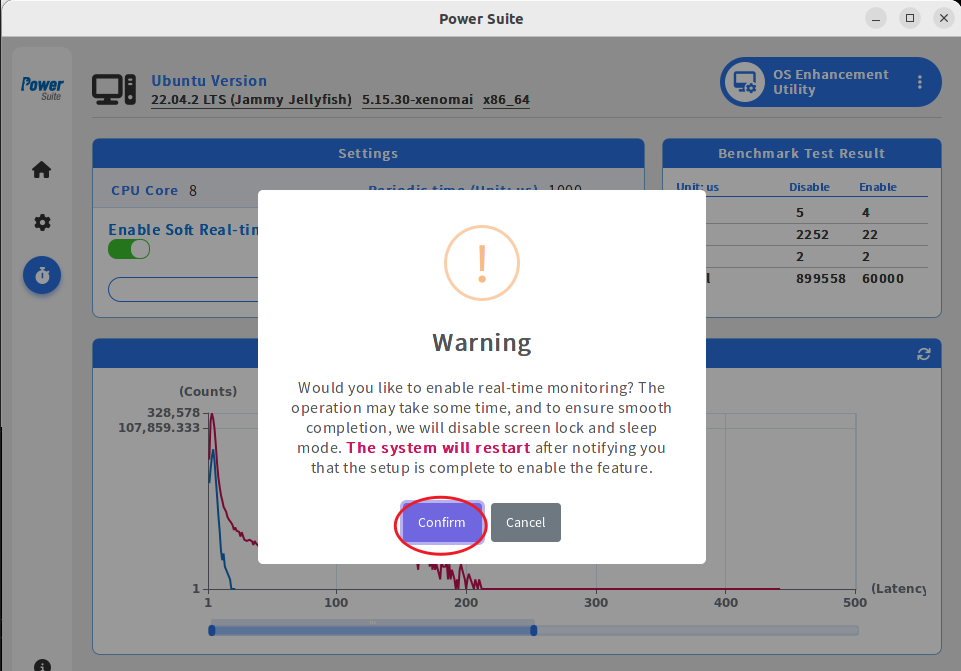
Enable/Disable Soft Real-time
Soft Real-time installs and enables the real-time OS flow, then reboots the system to apply the change. After reboot, the device runs in the real-time OS state and can be used for workloads that need more predictable timing behavior.
Use this feature when the device scenario benefits from reduced scheduling latency. Validate the target application after switching modes.
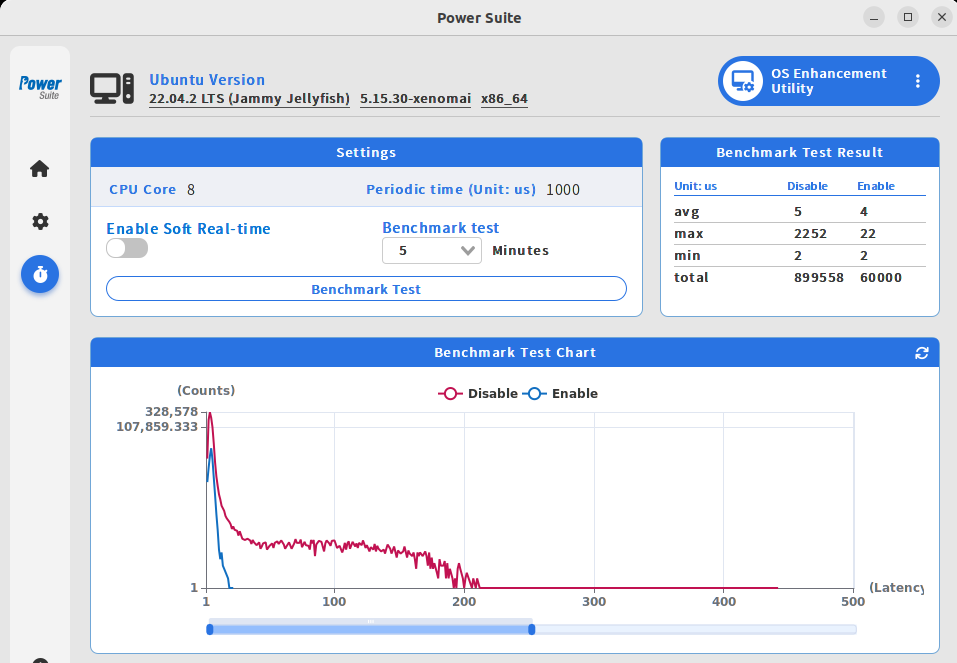
Soft Real-time Benchmark Test
The benchmark test helps compare real-time OS and non-real-time OS behavior. The manual shows benchmark results as statistics and charts so users can review timing differences after changing the soft real-time setting.
Energy Saving
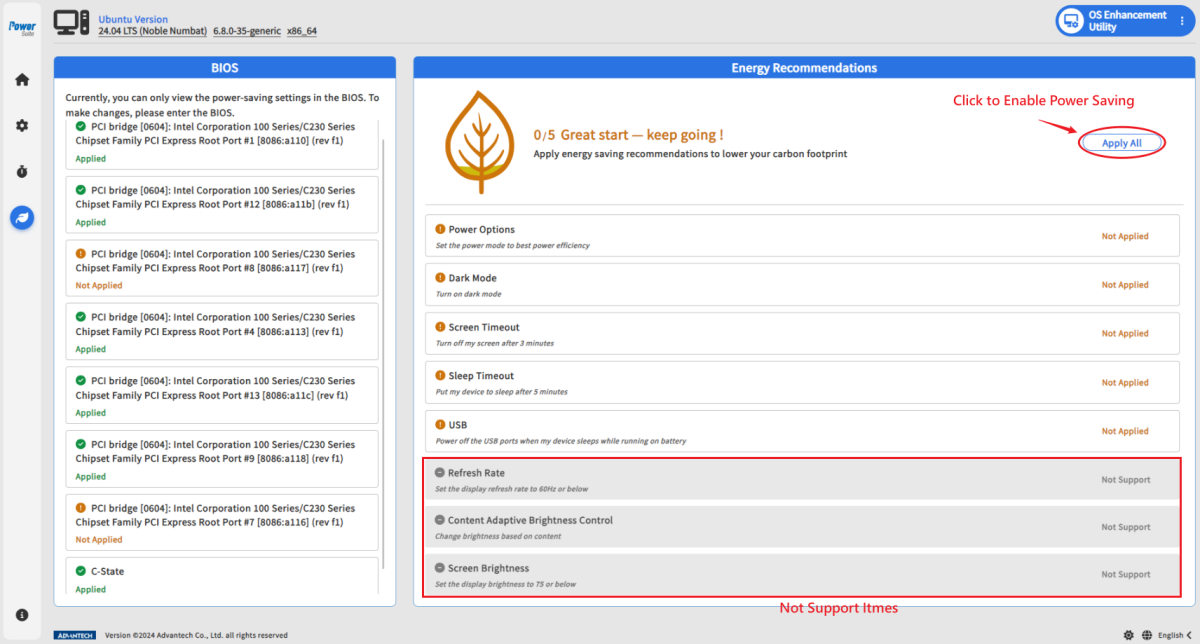
Energy Saving enables or disables supported Ubuntu energy-saving items. Use it when the device should reduce power consumption through supported system settings such as C-state and PCI device energy-saving behavior.
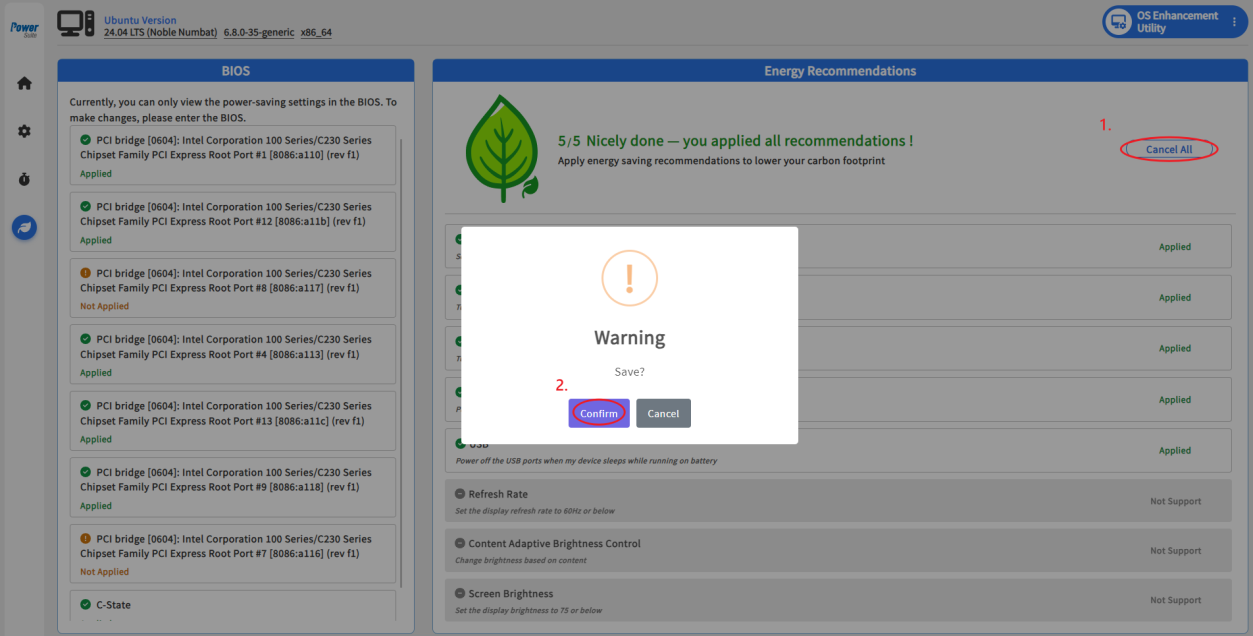
- Click Apply All to enable supported energy-saving items.
- When successful, Power Suite shows the supported items as applied.
- Click again to disable energy saving and restore the settings.
Some energy-saving items may require entering the BIOS menu. Validate performance and device responsiveness after applying power-saving settings.
Learn More
Microsoft Learn Supplement
- Assigned Access - Microsoft kiosk configuration for dedicated-purpose devices.
- Policy CSP - Update - Windows Update policy settings.
- Powercfg command-line options - Windows power and hibernate configuration background.